Learning how to use Cursor is no longer about memorizing an autocomplete shortcut. Cursor is now an agent that reads your repository, edits many files, runs your tests and opens pull requests, and the results depend far more on how you set it up and review its work than on which model you pick. This guide covers the parts that decide whether Cursor speeds a team up or quietly fills a codebase with plausible-looking mistakes.
What Cursor is today, and what changed
Cursor is a code editor that shares VS Code's default shortcuts and runs VS Code extensions. With Cursor 3, released on April 2, 2026, it gained the Agents Window, an agent-first interface for running and managing many agents in parallel across repositories and environments, including local, cloud and remote SSH. The classic editor is still there, with VS Code extensions and split panes, and you can switch between the two from the Command Palette (Open Agents Window and Open IDE).
The official documentation describes the agent as three components: instructions (Cursor's system prompt plus your rules), tools (file search, editing, terminal, web, browser and more) and the model you pick. Two of those three are under your control, and that is where most of the leverage is. The model matters, but a well-instructed agent with good context on a mid-tier model regularly beats a frontier model working blind.
A useful mental model for the rest of this guide: treat the agent like a fast, capable new colleague who has never seen your codebase. It needs a short onboarding document (rules), focused briefings (context), a clear task (prompt or plan), and a reviewer who reads every change before it ships. The full professional setup, from rules to multi-agent orchestration and team governance, is covered step by step in Cursor as a Pro; this article gives you the working core.
Setting up Cursor: the first hour
Install and import your editor setup
Cursor runs on macOS 12 and later, Windows 10 and later, and Linux, where the official apt and dnf packages are preferred over the AppImage because they add desktop integration, automatic updates and the CLI. If you come from VS Code, open Cursor Settings (Cmd+Shift+J on Mac, Ctrl+Shift+J on Windows and Linux), go to General > Account and use VS Code Import to bring over extensions, themes, settings and keybindings. One caveat: Cursor installs extensions from the Open VSX registry, not the VS Code Marketplace, so check that the extensions your team depends on are available before you standardize on it.
Decide on privacy before you open a client repository
Turn on Privacy Mode in Cursor Settings under General before the first real project, not after. With Privacy Mode on, Cursor states that your code is never used for training by Cursor or by the model providers. The details, including the exceptions, are covered in the privacy section below; the point here is ordering. Decide first, then open code.
Exclude what the agent should never read
Create a .cursorignore file in the project root for anything the agent does not need: build output, vendored dependencies, large generated files and any secrets that .gitignore does not already cover. Cursor already ignores .env files, .git/ and lock files by default, and it respects .gitignore. Note the limit that the documentation states plainly: terminal commands and MCP tools run outside Cursor's file access controls, so an ignored file is hidden from the agent's file tools, not from a shell command the agent runs.
Choose how models are selected
Use the model picker at the top of the chat input, or press Cmd+/ to cycle through models. If you select Auto, requests go through Cursor Router, which routes each request across a pool of models and offers three optimization modes: Cost, Balance (the default for new users) and Intelligence (recommended for complex, multi-step work). A sensible default is Auto on Balance for daily work, with a deliberate switch to a stronger model for architecture decisions and hard debugging.
Keep Tab, but know what it is
Tab is Cursor's autocomplete. It suggests multi-line edits based on your recent changes, surrounding code and linter errors, can add missing imports, and can predict the next place you will edit, even in another file. Press Tab to accept, Escape to reject, and Cmd+Right Arrow (Ctrl+Right Arrow on Windows and Linux) to accept word by word. Rules do not affect Tab; they apply to the agent.
The agent modes and what each one is for
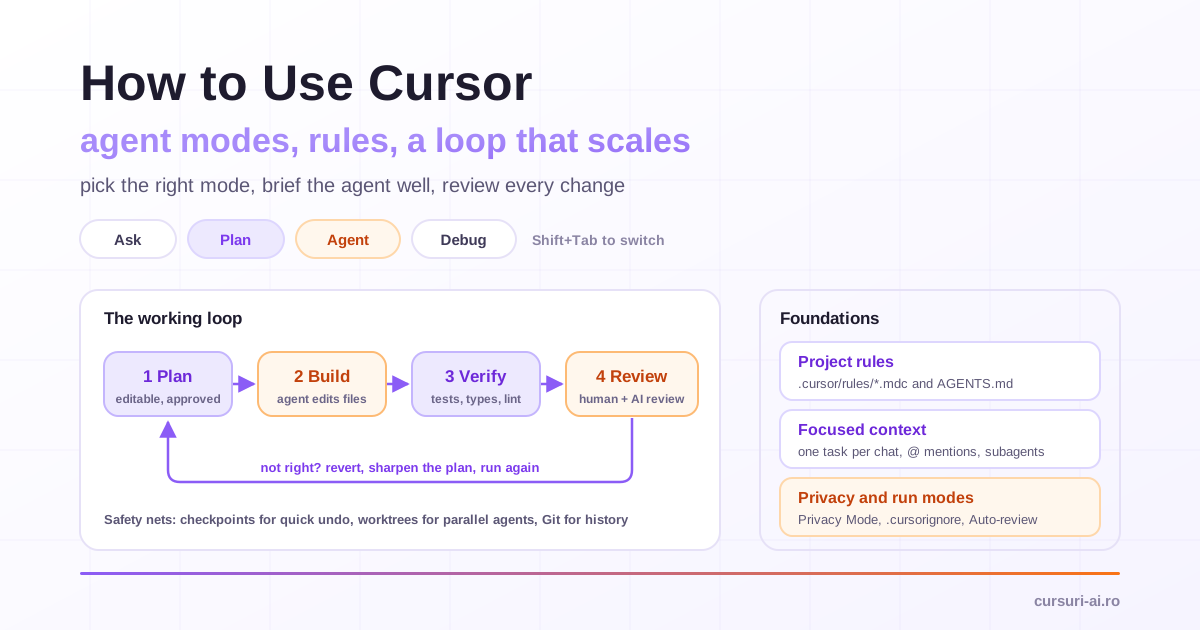
Open the agent with Cmd+I (Ctrl+I on Windows and Linux). Press Shift+Tab in the agent input to rotate between modes, or open the mode menu with Cmd+.. The built-in modes do different jobs, and choosing the right one is the cheapest quality improvement available.
| Mode | What it does | Use it for |
|---|---|---|
| Agent | Reads, searches, edits files and runs terminal commands until the task is done | Well-understood changes with clear acceptance criteria |
| Ask | Read-only: answers questions and explores code without editing | Onboarding to a codebase, understanding a flow before changing it |
| Plan | Researches the codebase, asks clarifying questions, writes an editable plan, waits for approval | Features that touch many files, unclear requirements, architectural choices |
| Debug | Forms hypotheses, adds instrumentation, asks you to reproduce, fixes from runtime evidence | Bugs you can reproduce but cannot explain: race conditions, regressions, leaks |
Ask mode: understand before you change
Ask mode is the right starting point on an unfamiliar repository. Questions like "How does the authentication flow work?" or "Where is the database connection configured?" get answers grounded in the code without any risk of edits. Switch to Agent mode only when you know what change you want.
Plan mode: the most underused mode
Plan Mode is where the quality of large changes is decided. The agent researches the codebase, asks clarifying questions, and produces an implementation plan you can edit in chat or as a markdown file before anything is built. Plans are saved in your home directory by default; Save to workspace moves a plan into the repository, where it can be reviewed and shared like any other document.
The documentation gives advice that matches what experienced teams find in practice: when the agent builds something that does not match what you wanted, do not try to repair it with a long chain of follow-up prompts. Revert, make the plan more specific, and run it again. That is usually faster and produces cleaner code, because the hard part of most changes is deciding what to change, not typing it.
Debug mode: evidence instead of guesses
Debug Mode changes the agent's default behavior from "propose a fix" to "prove the cause". It explores the relevant files, generates several hypotheses, adds log statements that report to a local debug server, and asks you to reproduce the bug with specific steps. After analyzing the logs, it makes a targeted fix and removes the instrumentation once you confirm the fix works. Give it the error message, the stack trace, the exact reproduction steps and the difference between expected and actual behavior.
Custom modes for repeatable ways of working
Cursor also lets you turn a skill into a Custom Mode. Type / in the chat input, choose a skill and press Option+Enter (Alt+Enter on Windows), or select Use as Mode. Inside the mode the skill stays in context on every turn until you exit it. This works well for a code review checklist or a test-driven development playbook that should govern a whole session rather than a single message. Custom Modes are available in the Agents Window and the CLI.
Project rules: teaching the agent your codebase
Language models do not remember anything between requests. Rules are how you give the agent the same onboarding every time. Cursor supports four kinds:
- Project Rules in
.cursor/rules, as.mdcfiles, version-controlled with the code. - User Rules, global preferences defined in Customize > Rules that apply to all your projects.
- Team Rules, managed from the Cursor dashboard on Team and Enterprise plans.
- AGENTS.md, plain markdown instructions in the project root and in subdirectories.
How a project rule is applied
A project rule is a markdown file with frontmatter. Three fields decide when it is included: alwaysApply, description and globs. In the editor these appear as four rule types:
| Rule type | Frontmatter | When it is included |
|---|---|---|
| Always Apply | alwaysApply: true |
In every chat session |
| Apply to Specific Files | globs set, alwaysApply: false |
When a matching file is in context |
| Apply Intelligently | description set, no globs |
When the agent judges it relevant from the description |
| Apply Manually | neither | Only when you @-mention it, for example @db-migrations |
Note that a plain .md file inside .cursor/rules is ignored by the rules system. Use .mdc there, or put plain markdown in AGENTS.md.
A file-scoped rule for a React frontend might look like this:
---
globs: src/components/**/*.tsx
alwaysApply: false
---

- Use named exports, not default exports.
- Server data goes through the hooks in src/api/, never fetch() in components.
- Every new component gets a test next to it: Component.test.tsx.
- Read @src/components/Button.tsx for the expected structure before creating a component.
The @src/components/Button.tsx reference matters. Cursor does not inline referenced files into the prompt; it tells the agent where to look, and the agent reads the file when it needs it. That keeps rules short and stops them going stale, but it also means anything that must always be in context belongs in the rule body itself.
What good rules contain
The official guidance is to keep each rule under 500 lines, split large rules into composable ones, and prefer concrete examples and referenced files over vague advice. In practice, the most valuable rules are the ones that prevent repeated mistakes:
- Architecture boundaries the model cannot infer: "Controllers never talk to the database directly; use the repository classes in src/Repository."
- Commands that prove a change works: how to run the unit tests, the type checker and the linter in this repository.
- Forbidden actions: generated directories that must not be edited, migrations that must be reversible.
- Pointers to canonical examples rather than copied code.
Leave out what the agent already knows. Copying a whole style guide into a rule wastes context; a linter enforces style better. The best trigger for a new rule is simple: when you see the agent make the same mistake twice, write the rule that prevents it, commit it, and let the whole team benefit. Cursor's built-in /create-rule command generates a rule file with the right frontmatter from a description.
AGENTS.md and precedence
AGENTS.md is the low-ceremony alternative: plain markdown, no frontmatter. Nested files are supported, so frontend/AGENTS.md applies when the agent works in that directory, combined with the root file, with the more specific instructions taking precedence. When several rule sources apply, Cursor merges them and resolves conflicts in this order: Team Rules, then Project Rules, then User Rules.
Writing rules is a form of prompt engineering with a long half-life, and the same principles apply: be specific, give examples, state constraints explicitly. The fundamentals are explained in Prompt Engineering in 2026: From Beginner to Pro, and the advanced techniques in The Complete Prompt Engineering Masterclass.
Context management: what the agent sees
Every conversation shares one context window with the model. Files, tool results, rules, skill descriptions, MCP catalogs and the conversation itself all compete for it. Cursor shows this as a context ring next to the prompt input; click it to see a breakdown by category. When the window fills, Cursor compresses older parts of the conversation into a summary, which keeps the session going but loses detail.
Practical habits that keep context clean:
- One task per conversation. A chat that has fixed a bug, refactored a module and discussed deployment carries a lot of irrelevant history into the next request. Start a new chat for a new task.
- Mention what you know is relevant, and only that. Type
@to attach files and folders,@Terminalsfor terminal output,@Commit (Diff of Working State)for uncommitted changes,@Branch (Diff with Main)for the whole branch, or@Chatsfor an earlier conversation. If you do not know which files matter, skip the mentions; the agent searches the codebase itself. - Let subagents do the searching. For broad questions, the agent can launch the built-in Explore subagent, which runs many searches in its own context window with a faster model and returns only the findings. You can ask for it directly: "use a subagent to find all the places we validate user input."
- Take tangents to a side chat. Type
/sideor/btwto ask a question in a separate conversation that uses the main thread as reference without polluting it. - Keep always-on rules lean. Every always-applied rule costs tokens in every request. Scope rules by glob or description wherever possible.
A workflow that scales: plan, build, verify, review
Individual features matter less than the loop you run them in. This is the loop that holds up on real codebases:
- Plan. For anything beyond a small edit, start in Plan Mode. Answer the clarifying questions, then edit the plan until it names the files to change, the approach, the edge cases and how the change will be verified. Save it to the workspace if a colleague should review it.
- Build. Switch to Agent mode and build from the plan. If you need to redirect the agent while it works, know the difference between a queued message, which waits until the current task finishes, and a steering message (Send now), which is delivered at the agent's next tool call without cutting off work in progress. Steering was still rolling out in the Agents Window at the time of writing.
- Verify. Ask the agent to run the checks your project already uses: tests, type checker, linter, a local build. A rule that lists these commands means you never have to type them.
- Review. Read the diff yourself, then run an automated review (next section). Commit only what you understand.
Two safety nets make this loop cheap to retry. Checkpoints are snapshots the agent creates automatically before significant changes; you can preview and restore files to any checkpoint from the chat timeline. They are stored locally and separately from Git, and they are meant for undoing agent changes, not for version control. Worktrees give each agent its own isolated Git checkout, so several agents can work on the same repository without colliding. In the Agents Window this is built in; a .cursor/worktrees.json file can run setup commands for each new worktree, such as installing dependencies and copying a local .env.
When a task is well specified and does not need you watching, a Cloud Agent can run it in an isolated virtual machine and push a branch for review. Cloud agents can be started from the desktop app, the web, Slack, a GitHub or Bitbucket comment mentioning @cursor, Linear or the API. They are only as good as their environment: if the agent cannot install dependencies and run your tests, it cannot verify its own work, so set up the environment before you hand it serious tasks.
Reviewing agent changes without rubber-stamping them
An agent produces a lot of code quickly, and the review is where quality is won or lost. Three layers work together.
Your own read of the diff. The agent's diff view shows every change. Read it with a few specific questions in mind:
- Does the change do what the plan said, and nothing else? Unrequested edits to unrelated files are a red flag.
- Were tests added or changed, and do the new tests actually assert behavior, or were existing tests weakened to pass?
- Are there new dependencies, configuration changes or permission changes?
- Is error handling real, or does it swallow exceptions?
- Would you be comfortable defending this code in a review from a senior colleague?
Agent Review runs a dedicated review on your local changes from inside Cursor. Trigger it with /agent-review, from the Source Control tab (which compares all local changes against your main branch), or automatically after each commit. It has two depths: Quick for small diffs and sanity checks, Deep for complex logic, security-sensitive code and large refactors.
Bugbot reviews pull requests on GitHub, GitLab, Bitbucket and Azure DevOps, leaving comments with explanations and suggested fixes. It runs on each PR update, or on demand when someone comments cursor review or bugbot run. Project-specific review guidance lives in .cursor/BUGBOT.md, which Agent Review also reads, so one file can teach both reviewers what matters in your codebase.
Automated review catches a different class of problem from human review; it does not replace it. The final approval should always come from a person who understands the change.
Run modes and agent security
The agent can run terminal commands and call external tools, which makes its permissions a real security decision. By default, reading files and searching code run without approval, workspace file edits apply directly (configuration files need approval), and terminal commands need your approval. Every MCP connection needs approval, and each MCP tool call needs approval too unless you allowlist it.
Under Settings > Agents > Approvals & Execution, Cursor offers three Run Modes:
| Run mode | What runs without asking | Good for |
|---|---|---|
| Auto-review | Allowlisted calls; other shell commands in the sandbox where possible; the rest reviewed by a classifier | Most developers: fewer prompts with a safety check on risky calls |
| Allowlist | Only the actions on your allowlist | Predictable behavior with a small set of trusted commands |
| Run Everything | Every tool call | Disposable environments where you accept the risk |
The sandbox limits what terminal commands can reach: they can read and write inside the workspace, protected paths such as .git/config and .git/hooks are off limits, and network access is blocked by default unless your network settings or sandbox.json open it. You can steer Auto-review in plain English through a permissions.json file, at user level (~/.cursor/permissions.json) or per project (.cursor/permissions.json):
{
  "autoRun": {
    "allow_instructions": [],
    "block_instructions": [
      "Every AWS CLI command should go through approval first.",
      "Every command that modifies Kubernetes resources should go through approval first."
    ]
  }
}
Cursor's own documentation is explicit that Auto-review "is not a security boundary": the classifier can allow a call you would have blocked. Treat it as a convenience layer on top of real controls: least-privilege credentials on developer machines, no production secrets in local .env files, and branch protection that requires human review. The Run Modes documentation covers the full lifecycle and the sandbox configuration.
Connecting tools through MCP multiplies what the agent can do, and what can go wrong. Approve servers one by one, prefer read-only tools, and remember that anything an MCP tool returns enters the agent's context. How the protocol works, and where its risks are, is explained in What Is MCP (Model Context Protocol)? How It Works, With Code. Project MCP servers are configured in .cursor/mcp.json and global ones in ~/.cursor/mcp.json, as described in Cursor's MCP documentation.
Privacy settings that matter for professional work
When you use AI features, Cursor sends prompts and code context to model providers such as OpenAI, Anthropic and Google. What happens next depends on your settings:
- Privacy Mode keeps your code from being used for training by Cursor or the model providers. Cursor documents that it is on by default for Enterprise teams, and Teams and Enterprise admins can enforce it organization-wide so members cannot turn it off.
- Zero data retention has exceptions. It does not apply when you use your own API keys, in which case your provider's policy governs the data. Some models also require data retention with their provider; Cursor's documentation names Claude Fable 5.1 and Claude Fable 5, whose inputs and outputs Anthropic stores for harm-prevention review. With Privacy Mode enabled, requests to those models fail until an admin approves their retention policy from the dashboard.
- Cloud Agents are the only feature that requires Cursor to store code. They keep encrypted copies of the repositories they work on while the agent runs and delete them afterward. If your policy prohibits code storage, leave Cloud Agents off; everything else still works.
- Data residency is available to Enterprise customers as US-only (inference, processing and storage). At the time of writing, EU and UK coverage is inference-only and available on request.
For a security or procurement review, the Privacy and Data Governance page is the document to send; it describes both data flows, encryption and the data processing agreement.
Team conventions that make Cursor predictable
A single developer can get good results with ad hoc habits. A team needs the same agent behavior on every machine, which means putting configuration in the repository and reviewing it like code.
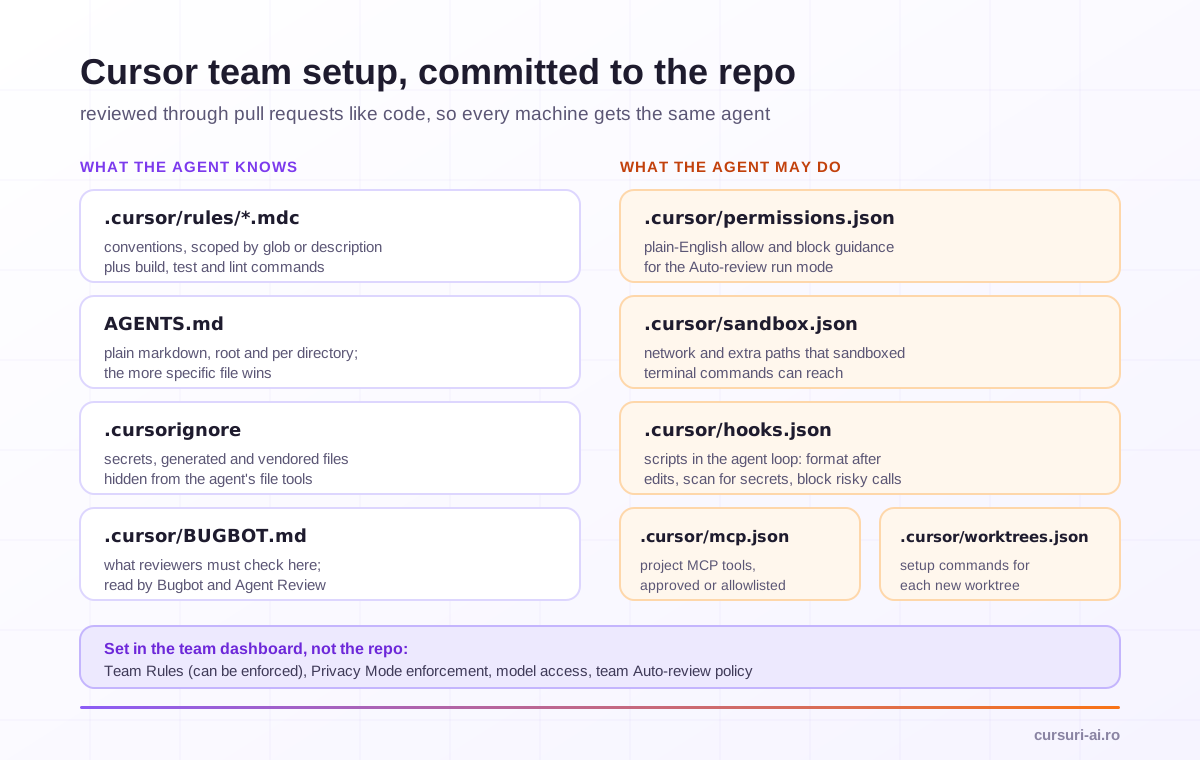
A checklist for a team rollout:
-
.cursor/rules/andAGENTS.mdare committed and changed through pull requests, with an owner for each. - Organization-wide standards (security, licensing, data handling) live in Team Rules, marked as enforced where they must not be switched off.
-
.cursorignoreexcludes secrets, generated files and vendored code. -
.cursor/permissions.jsonencodes which command families always need approval; teams can also define Auto-review configuration centrally in the dashboard, where it takes priority over local files. -
.cursor/hooks.jsonruns formatters after edits and scans for secrets before shell commands or MCP calls. Hooks are scripts that run at defined points of the agent loop and can block or modify actions. -
.cursor/worktrees.jsonmakes new worktrees ready to test without manual setup. -
.cursor/BUGBOT.mddocuments what reviewers must check in this codebase. - Privacy Mode is enforced from the dashboard and, on Enterprise, model access is restricted to the models your policy allows.
- The definition of done for agent work is written down: tests pass, types check, a human reviewed the diff.
The Rules documentation is the reference for formats and precedence; check it when Cursor updates, because the product changes often.
Where Cursor fits next to terminal agents
Cursor is an IDE-centered agent: strong when you want to see files, diffs and a browser while you steer. Terminal-first agents such as Claude Code suit scripted, long-running and CI-driven work, and many teams use both on the same repository. The habits in this guide transfer directly, because the underlying discipline is the same: written instructions in the repository, narrow context, plan before build, automated checks, and a human who reads the diff. If your work leans toward the terminal, Claude Code Mastery: Agentic Coding from the Terminal covers that side in depth.
Frequently Asked Questions (FAQ)
How do I start using Cursor on an existing project?
Install Cursor, import your VS Code settings if you have them, turn on Privacy Mode, and add a .cursorignore for secrets and generated files. Then open the project, switch to Ask mode and ask the agent to explain the codebase and its main entry points. Write a short always-applied rule or an AGENTS.md with your build, test and lint commands before you ask for the first change.
What is the difference between Agent, Ask, Plan and Debug mode in Cursor? Agent mode edits files and runs commands to complete a task. Ask mode is read-only and answers questions about the code. Plan mode researches the codebase, asks clarifying questions and writes an editable plan that waits for your approval. Debug mode generates hypotheses, adds temporary logging, asks you to reproduce the bug and fixes it based on runtime evidence. Press Shift+Tab in the agent input to switch.
Should I use .cursor/rules or AGENTS.md?
Use AGENTS.md when plain markdown instructions are enough, including per-directory files for different parts of a repository. Use .mdc files in .cursor/rules when you need control over when a rule applies, for example only for certain file patterns or only when the agent judges the description relevant. Many teams use both, and Team Rules on top for organization-wide standards.
Is my code used to train AI models when I use Cursor? With Privacy Mode enabled, Cursor states that your code is never used for training by Cursor or the model providers. Zero data retention does not apply when you use your own API keys, and a few models require provider-side retention and need admin approval. Cloud Agents temporarily store encrypted copies of the repositories they work on.
Is it safe to let the Cursor agent run terminal commands automatically?
It can be, with limits. Auto-review runs allowlisted commands, sandboxes other shell commands where possible and sends the rest to a classifier, but Cursor itself says Auto-review is not a security boundary. Keep production credentials off developer machines, block risky command families in permissions.json, and reserve Run Everything for disposable environments.
Conclusion
Using Cursor well comes down to a handful of decisions made early and kept consistent. Turn on Privacy Mode and set up .cursorignore before opening real code. Pick the mode that matches the task: Ask to understand, Plan for anything that touches many files, Agent to build, Debug when the cause is unclear. Put your conventions and verification commands in project rules or AGENTS.md, keep them short, and add a rule each time the agent repeats a mistake. Keep conversations focused, let subagents do broad searches, and use checkpoints and worktrees so retries are cheap. Then review every change, by hand and with Agent Review or Bugbot, and choose run modes that match your real risk. Teams that commit this configuration to the repository get predictable results from the same tool that gives others unpredictable ones.

The course that continues this article
Cursor as a Pro: AI-Native IDE, Composer and Multi-Agent 2026 (Enterprise Edition)
You have read the theory. In the course you put it into practice: written lessons structured in modules, with examples and exercises, quizzes, the AI Professor in every lesson and progress saved automatically. Once you complete the lessons and reach the minimum quiz score, you get the Certificate of Completion, a private attestation.
From the course syllabus
- Cursor 3 Fundamentals
- Composer Mastery
- Model Selection and Intelligent Routing
- Background Agents and Cloud
+ 7 more modules in the full syllabus
€99 per month for this course, VAT included · or pick it in a subscription of 3, 5 or 10 courses, from €199 per month, together with other IT courses; you can change them at every renewal (see what you learn across the whole track).
Monthly subscription with automatic renewal · stop the renewal anytime from your account · digital content with immediate access, see the withdrawal conditions. The certificate confirms that you completed the course and is private: it is not a diploma or a state-recognised qualification.