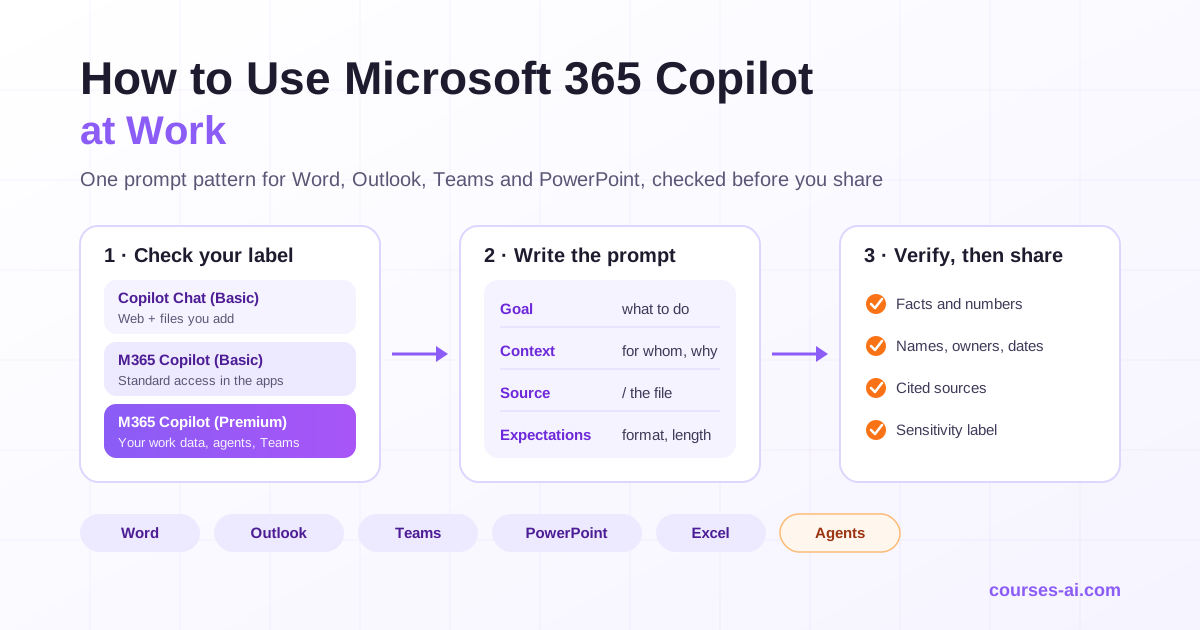
To use Microsoft 365 Copilot at work, sign in with your work account, open Copilot in the app where the work is (Word, Outlook, Teams, PowerPoint or Excel) or in the Microsoft Copilot app, and give it a prompt with a goal, some context, a source and the output you expect. Type / to point it at a specific file, then review what it produces before you share it. What Copilot can reach depends on your license: Copilot Chat works mainly from the web and from content you hand it, while a paid Microsoft 365 Copilot license grounds answers in your email, files, meetings and chats.
This guide covers what each tier includes as of November 2026, prompts to copy for each app, Copilot in Teams meetings, what IT controls, and how to check whether the license pays for itself.
Copilot Chat or a Microsoft 365 Copilot license: check what you have
Start with the names, because Microsoft is changing them. Its documentation now notes that "the Microsoft 365 Copilot app is now called Microsoft Copilot" and that "the Microsoft 365 Copilot Chat app is now called Microsoft Copilot Chat", and the main address is moving to copilot.cloud.microsoft, while the price lists still sell the license as Microsoft 365 Copilot. In this guide, Copilot Chat means what an eligible work account gets without the add-on, and Microsoft 365 Copilot means the paid license.
To see what you have, sign in to Microsoft 365 with your work account, scroll to the bottom of the home page and read the label under your name:
- Copilot Chat (Basic): no add-on license, and no Copilot in Word, Excel, PowerPoint and OneNote.
- M365 Copilot (Basic): no add-on license, but standard access to Copilot in those apps.
- M365 Copilot (Premium): the add-on license, with priority access to the full experience.
Every eligible work account also gets Copilot Chat in Outlook. The license comparison on Microsoft Learn shows the rest:
| Copilot Chat (Basic) | M365 Copilot (Basic) | M365 Copilot (Premium) | |
|---|---|---|---|
| Copilot in Word, Excel, PowerPoint, OneNote | No | Standard access | Priority access, full experience |
| Copilot Chat in Outlook | Inbox, calendar, meetings | Inbox, calendar, meetings | Adds chats and enterprise data |
| Work data in answers | Files you upload, or content open in Outlook or Teams | Files you upload, or content open in Outlook or Teams | Pulled automatically through Microsoft Graph and Work IQ |
| Agents | Agents grounded in instructions and public websites; work-data agents pay-as-you-go | Same as Copilot Chat | Agents that use work data, including Researcher and Analyst |
| Enterprise data protection | Yes | Yes | Yes |
Standard access "is subject to service capacity and might vary throughout the day", Microsoft applies fair use limits to some features for users without the license, and on every tier "chat experiences in Microsoft 365 apps vary depending on your tenant configuration and license". A colleague with the same label in another company may see different options.
Prices, as of November 2026, on Microsoft's US site. The Microsoft 365 Copilot add-on costs $30.00 per user per month paid yearly, or $31.50 paid monthly on an annual commitment, on top of a qualifying Microsoft 365 plan. For businesses with up to 300 users and an eligible Business plan, the Microsoft 365 Copilot Business add-on lists at $21.00 per user per month paid yearly, discounted to $18.00 for the first year on annual commitments bought between July 1 and December 31, 2026; the Business Standard and Business Premium bundles with Copilot are $23.50 and $32.00 per user per month, paid yearly. Microsoft 365 E7 includes Copilot, and some advanced AI experiences are billed by usage, beyond license fees. Check Microsoft's site for your country before you build a budget.
Your label tells you what is possible. Building the habits that make it pay off in your own role, with prompt patterns that survive interface changes and workflows for sales, marketing, finance, HR and operations, is the hard part, covered in depth in Microsoft 365 Copilot for Office Work: Role-Based Productivity.
The prompt pattern that works in every app
Microsoft's guidance splits a prompt into four parts: Goal ("What do you want Copilot to do?"), Context ("Why do you need it, and who is involved?"), Source ("What information or samples should Copilot use?") and Expectations ("How should Copilot respond?"). Only the goal is required. The other three turn a generic answer into a draft you can use, in every app.
Goal: Draft a one-page status update on the CRM migration.
Context: It is for the operations director, who decides on extra budget
on Friday and does not need technical detail.
Source: /CRM-migration-status.docx and this week's emails from Dana.
Expectations: Five bullets, then one line on the main risk and one
recommendation. Mark anything you cannot find in the sources as [CHECK].
Four habits make the pattern work:
- Name the source. In Word, type
/in the Copilot pane and start typing the name of a document, email or meeting; PowerPoint uses/to pick the file a deck is built from. Name nothing, and Copilot decides what looks relevant. - Make gaps visible. An instruction such as "mark anything you cannot find in the sources as [CHECK]" beats a fluent guess.
- Iterate instead of restarting. Follow-ups such as "shorter" or "add the dates" keep the context you already gave.
- Verify before you share. Microsoft's advice for Word is to "review and verify details, especially facts, numbers, citations, names, policy statements, and other sensitive information."
None of this is specific to Microsoft. Choosing between assistants and applying the same discipline in ChatGPT, Claude or Gemini is the subject of The AI Productivity Masterclass for Knowledge Workers.
How to use Copilot in Word
Microsoft describes Copilot in Word as help to "draft new content to get past the blank page, rewrite and refine your writing, and comprehend long or complex documents." Open it from the Copilot button in the corner of the document. It starts in Edit mode, which can change the file; select Chat only when you want answers without edits.
Work in two passes:
- Draft from sources. Describe the outcome, audience, tone and length, type
/to choose the source file, then keep, discard, regenerate or refine the draft. - Edit in place. Select a passage and use a preset such as Rewrite, or describe the change in your own words, from a small tweak to a document-wide revision. In a shared document, Copilot previews suggested changes in chat first, and nothing is added until you approve it.
Prompts to copy (the first three are Microsoft's examples):
Draft a customer brief about [initiative] for [audience]. Include background,
benefits, risks, and next steps.

Make this section more concise and customer-ready without changing the meaning.

What decisions are needed before this document is ready to share?

Summarize this document in five bullets for a director who has two minutes,
then list the three claims I should check before I forward it.
Microsoft says Copilot "will respect and apply the proper sensitivity label to help protect your document", and you can ask it for content with citations to the sources you referenced, which speeds up the final check.
How to use Copilot in Outlook
Outlook is the natural place to start, because every eligible work account has Copilot Chat there. Without the add-on you can ask about "your inbox, calendar, meetings, and other limited data"; with it, Copilot also works with your chats and enterprise data. The features to learn:
- Summary by Copilot (it may say Summarize) at the top of a thread, with numbered citations that take you to the source email. In the new Outlook and Outlook on the web you can also summarize attached Word, PowerPoint and PDF files.
- Draft with Copilot: type
/in a message, select Draft with Copilot and describe the email you need. - Coaching by Copilot, which reviews a draft for tone, sentiment and clarity and can apply all its suggestions in one step.
- Prioritize my inbox, which rates incoming email high, low or normal and gives a reason.
Prompts to copy. The first three are Microsoft's examples, and only the third needs the add-on; the last shows a reply brief that states the decision, the facts and the tone.
Summarize my emails from the last week related to [project or customer name].

Draft an email update summarizing the customer escalations from this week.

Which unread emails are most important? Summarize them, synthesize any related
context from my chats and documents, and prioritize the order in which I should
respond.

Reply to Ana: thank her for the revised quote, accept the March 3 delivery
date and ask her to confirm the payment terms in writing. Three sentences,
warm but direct.
One limit to know: Microsoft says these features "are not supported on signed or encrypted emails, on emails with IRM, or on some MIP labeled emails." If your team encrypts or labels much of its mail, test this in the first week.
How to use Copilot in Teams meetings
In Teams, the license decides who can use Copilot in a meeting, and transcription decides what is left once the meeting ends.
Who can use it. Microsoft's Teams admin documentation lists an add-on Microsoft Copilot license as the prerequisite. In meetings and events with up to 1,000 attendees, each licensed participant gets a private Copilot chat whose prompts only they see. The organizer controls whether and how participants can use Copilot, even without a license of their own.
The two modes. The organizer sets Copilot to During and after the meeting or Only during the meeting, or to Off, which also disables recording and transcription. "Only during the meeting" runs on speech-to-text data that isn't saved after the meeting ends. Microsoft's guide to Copilot in Teams meetings spells out the consequence: to prompt Copilot about the meeting or see its conversation history after it ends, live transcription has to be on during the meeting. Afterward, Copilot is available in the meeting chat and on the Recap tab, as long as a transcript exists.
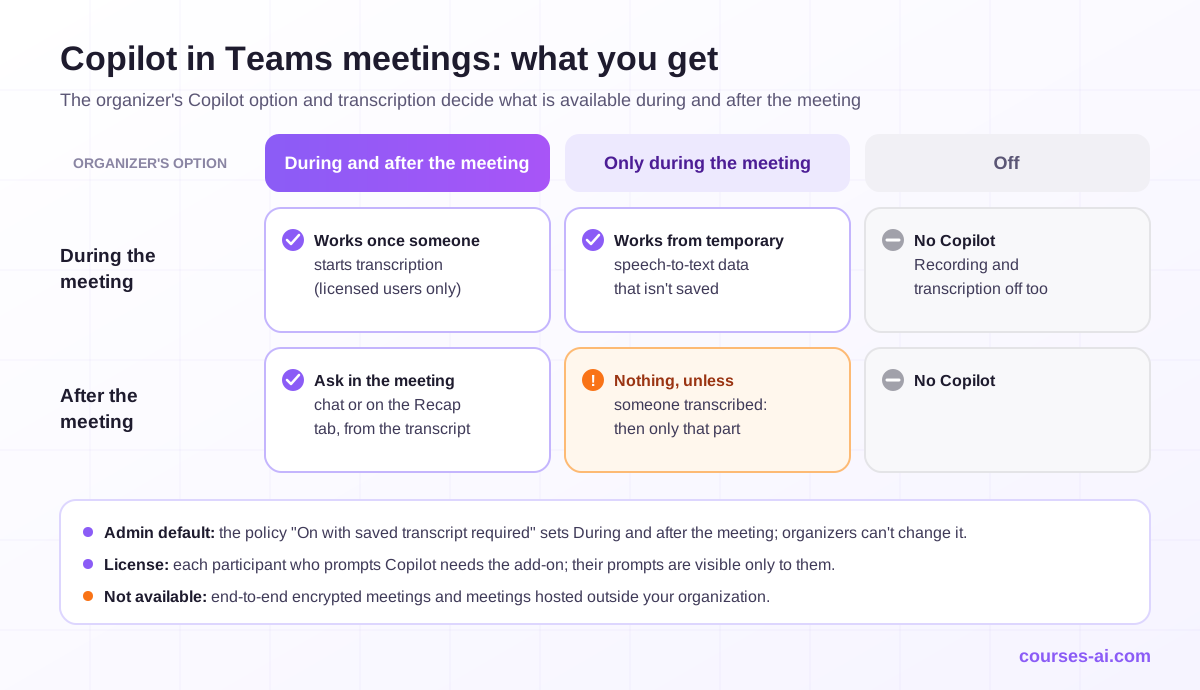
Limits. Copilot doesn't work in meetings hosted outside your organization, and it isn't available in end-to-end encrypted meetings. If you join more than five minutes late while Copilot is active, it offers to catch you up. Once someone starts transcription, it also uses meeting chat from up to 24 hours before the meeting.
Prompts to copy (the first three are Microsoft's suggestions):
Where do we disagree on this topic?
What questions can I ask to move the meeting forward?
Create a table with the ideas discussed and their pros and cons.

List every decision made in this meeting, who owns each follow-up and any
deadline mentioned. Mark items where no owner was named.

Draft a recap for people who missed the meeting: decisions, open questions,
next steps. Under 150 words, using only what is in the transcript.
Treat the output as draft minutes: check names, owners and dates against the transcript, and tell participants when a meeting is being transcribed. Responses longer than 1,300 characters can be opened in Word, and tables in Excel, so the recap is easy to edit before you post it.
How to use Copilot in PowerPoint
Start from a document, not from a one-line prompt. In a blank presentation, select Copilot, type "Create presentation from file" and pick the document: Microsoft says Copilot "will build a draft presentation based on your Word document, complete with images and speaker notes." It takes one file at a time, and with a Microsoft Copilot license it also accepts PDFs, with encrypted documents included.
Quality then depends on three things. First, a focused source: Copilot "is currently limited in the number of words it can process per prompt", so give it a tight document with clear headings. Second, your template: using your organization's branding is available to licensed users, and IT can publish approved templates in the Organization Asset Library. Third, a Rewrite pass, with Auto-rewrite, Condense or Make professional, which works on whole text boxes rather than partial selections.
Prompts to copy (the first is Microsoft's example):
What are some potential questions that I might be asked by the audience
who I present this to?

Summarize this presentation in five bullets I can paste into the meeting
invitation, and flag any slide that has no clear takeaway.
Copilot in Excel, briefly
In Excel, Copilot "offers three modes: edit, plan, or chat": edit changes the workbook directly, plan proposes the steps first, and chat keeps answers in the pane. With the license, Agent Mode, from the Tools menu, handles multi-step work such as reshaping data, merging sheets or building reports. Microsoft's advice is blunt: "Review, edit, and verify anything Copilot creates before you rely on it." Our guide on how to analyze data with AI without coding includes a five-step check for every number, and No-Code Data Analysis with AI: ChatGPT, Excel and SQL for Non-Programmers goes further, to catching invented columns and wrong calculations.
Agents: Researcher, Analyst and your own
Agents are focused versions of Copilot for one job. In the Microsoft Copilot app they sit under Agents in the left navigation; add a missing one from All agents, or ask IT, because Microsoft notes an agent can be unavailable when you don't have a license or your administrator hasn't enabled it.
- Researcher is built for "complex, multistep research" and delivers "a structured, source-cited report" from the web and, at work, from the files, emails, meetings and chats you have access to. Business users need the Microsoft 365 Copilot add-on for it.
- Analyst turns raw data into insights, from trends and forecasts to visual summaries of complex datasets.
- Agent Builder creates an agent from a description: select New Agent under Agents and say what it should do, or start from a template. Copilot Chat includes agents grounded in instructions and public websites; without the license, agents that use work data are pay-as-you-go.
Start narrow: one recurring task, one set of source files, written instructions on tone and format. Your administrators control how users can create and use agents, so check the policy before you roll one out to colleagues.
Data protection: what IT will ask, and what Microsoft documents
If you are making the case for Copilot, expect the same questions from IT, security and legal. Here is what Microsoft documents.
Is our data used to train the models? Microsoft says "the prompts, responses, and data accessed through Microsoft Graph aren't used to train foundation models." Enterprise data protection covers Copilot Chat and the licensed tiers when users sign in with Microsoft Entra work accounts, under Microsoft's Data Protection Addendum and Product Terms, with Microsoft acting as a data processor. In the Copilot app, a "Work" label under the profile and a green data protection shield confirm the protected work experience.
Can Copilot show people things they shouldn't see? Copilot "only surfaces organizational data to which individual users have at least view permissions." It doesn't bypass permissions, but it makes overshared content easy to find: if a salary spreadsheet sits on a site shared with the whole company, for example, Copilot can surface it for anyone there. When at least one user has a Copilot license, SharePoint administrators get SharePoint Advanced Management features for the cleanup, including permission state reports, site access reviews and Restricted Content Discovery, which keeps chosen sites out of Copilot results unless a user recently interacted with the content.
Do our labels and policies still apply? Microsoft says Copilot "inherits your sensitivity labels, applies your retention policies, supports audit of interactions, and follows your administrative settings", with controls that vary by subscription plan. It honors the usage rights on content encrypted with Microsoft Purview Information Protection, and admins can set retention policies for Copilot interactions in Purview.
Where is the data processed? Microsoft states that EU traffic stays within the EU Data Boundary, with two exceptions to know. Web search queries go to Bing and fall outside the boundary; they are sent with user and tenant identifiers removed, but Bing handles them under its own terms, with Microsoft acting as an independent data controller, and admins control web grounding with the Allow web search in Copilot policy. Anthropic models are "currently excluded from the EU Data Boundary" and are off by default for customers in the EU, EFTA and UK, so enabling them is an explicit admin decision.
What can IT control? Copilot controls in the Microsoft 365 admin center cover how users create and use agents, image generation, web grounding and even removing access to Copilot Chat entirely, and the AI Administrator role manages Copilot without Global Administrator rights. In Teams, the meeting policy's default Copilot setting, On with saved transcript required, enforces "During and after the meeting", so Copilot in those meetings works only once a transcript is running.
And the GDPR? If your organization is subject to it, involve your data protection officer early. Microsoft publishes customizable "Build Your Own" Microsoft 365 Copilot DPIA templates for public sector and enterprise organizations. This section is general information, not legal advice.
Sensitivity labels, GDPR and DPIA questions and the EU Data Boundary are covered in the compliance module of Microsoft 365 Copilot for Office Work: Role-Based Productivity.
How to measure whether Copilot pays off
Microsoft gives you two kinds of numbers, and it pays to know what each one measures.
Adoption. The Copilot usage reports in the Microsoft 365 admin center show active users, prompts and use per app, separately for Copilot Chat and for Copilot in the apps. The Copilot Dashboard in Viva Insights is available to any business or enterprise customer with an active Exchange Online account, with no paid Viva Insights license or Copilot license needed to view it, and groups its metrics into readiness, adoption, impact and sentiment.
Estimated impact. The dashboard's Copilot assisted hours is "an estimate of the total time employees were assisted by using Copilot", built from usage and multipliers derived from Microsoft's research. Read the method before you quote it. For meeting summaries, the duration of each meeting summarized or recapped counts, so recapping a one-hour meeting adds one assisted hour: the metric tracks time Copilot touched, not time someone got back. Copilot assisted value multiplies those hours by an hourly rate that defaults to $72, based on U.S. Bureau of Labor Statistics data, and you can change it. Microsoft calls these "broad approximations based on the best available research rather than precise calculations."
Break-even. At the $30.00 list price, the add-on costs $360 per user per year. At the dashboard's default $72 an hour, that is five hours of genuinely recovered time per user per year, before training and rollout costs; at the $18.00 first-year Business price, it is three. The bar is low on paper, which is why the evidence behind it has to be real.
A pilot that produces evidence:
- Pick three to five recurring tasks per role, such as the weekly report, meeting follow-ups, customer replies or a first proposal draft, and time them for two weeks before anyone gets a license.
- License a pilot group and keep a comparable group on Copilot Chat, so you measure what the license adds rather than what any AI assistant adds.
- Track time per task, the revisions a reviewer asks for and errors found later, not only usage.
- Run it for six to eight weeks, starting with a short prompt workshop.
- Decide per role. Some roles earn the license; others are well served by Copilot Chat.
For the people side of the business case, see the ROI of AI upskilling for teams.
Frequently Asked Questions (FAQ)
What is the difference between Microsoft 365 Copilot Chat and Microsoft 365 Copilot? Copilot Chat is included with eligible Microsoft 365 licenses and answers mainly from the web and from content you upload or have open in Outlook or Teams. The paid Microsoft 365 Copilot license adds automatic grounding in your work data through Microsoft Graph, priority access to Copilot in Word, Excel, PowerPoint and OneNote, Copilot in Teams meetings, and agents such as Researcher and Analyst.
How much does Microsoft 365 Copilot cost? As of November 2026, Microsoft's US site lists the Microsoft 365 Copilot add-on at $30.00 per user per month paid yearly, on top of a qualifying Microsoft 365 plan. The Microsoft 365 Copilot Business add-on, for businesses with up to 300 users, lists at $21.00, or $18.00 for the first year on annual commitments bought between July 1 and December 31, 2026.
Does Microsoft use my company's data to train Copilot? No. Microsoft states that prompts, responses and data accessed through Microsoft Graph aren't used to train foundation models, and enterprise data protection applies to Copilot Chat and the licensed tiers when users sign in with their work accounts.
Do I need to transcribe a Teams meeting to use Copilot? Not during the meeting: the "Only during the meeting" option runs on speech-to-text data that isn't saved. To ask Copilot about the meeting afterward, including from the Recap tab, transcription must have been on during the meeting. Your admin's meeting policy can also require a saved transcript, and that is the default setting.
Can Copilot see files I don't have access to? No. Copilot only surfaces organizational data you have at least view permission for. The real risk is content shared more widely than it should be, which becomes easier to find, so review permissions and sensitivity labels before a broad rollout.
Conclusion
Using Microsoft 365 Copilot well starts with knowing which Copilot you have. Copilot Chat handles drafting and questions about content you provide; the license adds your work data, the full in-app experience, Copilot in Teams meetings and agents such as Researcher. In every app the same pattern works: a clear goal, context, a named source and explicit expectations, followed by a verification pass. Before a broad rollout, fix oversharing, confirm how labels, retention and the EU Data Boundary apply to your organization, and judge the license with a pilot that measures time and quality per task, not the dashboard's estimates alone.

The course that continues this article
Microsoft 365 Copilot for Office Work: Role-Based Productivity
You have read the theory. In the course you put it into practice: written lessons structured in modules, with examples and exercises, quizzes, the AI Professor in every lesson and progress saved automatically. Once you complete the lessons and reach the minimum quiz score, you get the Certificate of Completion, a private attestation.
From the course syllabus
- Copilot Fundamentals: What It Is, How It Works with Your Data and License Types
- The Art of the Prompt in Copilot: Durable Patterns That Work in Every App
- Copilot in Word: Drafting, Summarizing, Rewriting and Structuring Long Documents
- Copilot in Excel: Analysis, Natural-Language Formulas, Insights, Pivots and Agent Mode
+ 7 more modules in the full syllabus
€99 per month for this course, VAT included · or pick it in a subscription of 3, 5 or 10 courses, from €199 per month, together with other Business courses; you can change them at every renewal (see what you learn across the whole track).
Monthly subscription with automatic renewal · stop the renewal anytime from your account · digital content with immediate access, see the withdrawal conditions. The certificate confirms that you completed the course and is private: it is not a diploma or a state-recognised qualification.